Welcome
Welcome to AdaBots!
The 3D world
If you click “Open World”, a new browser tab will open. This
is the 3-dimensional Luanti block world; use WASD to move, space to jump, left-click to mine and right-click to place.
Use the scroll-wheel or number keys to select different slots,
and press I to open the inventory and other menu’s.
Now, let’s meet your new friend:
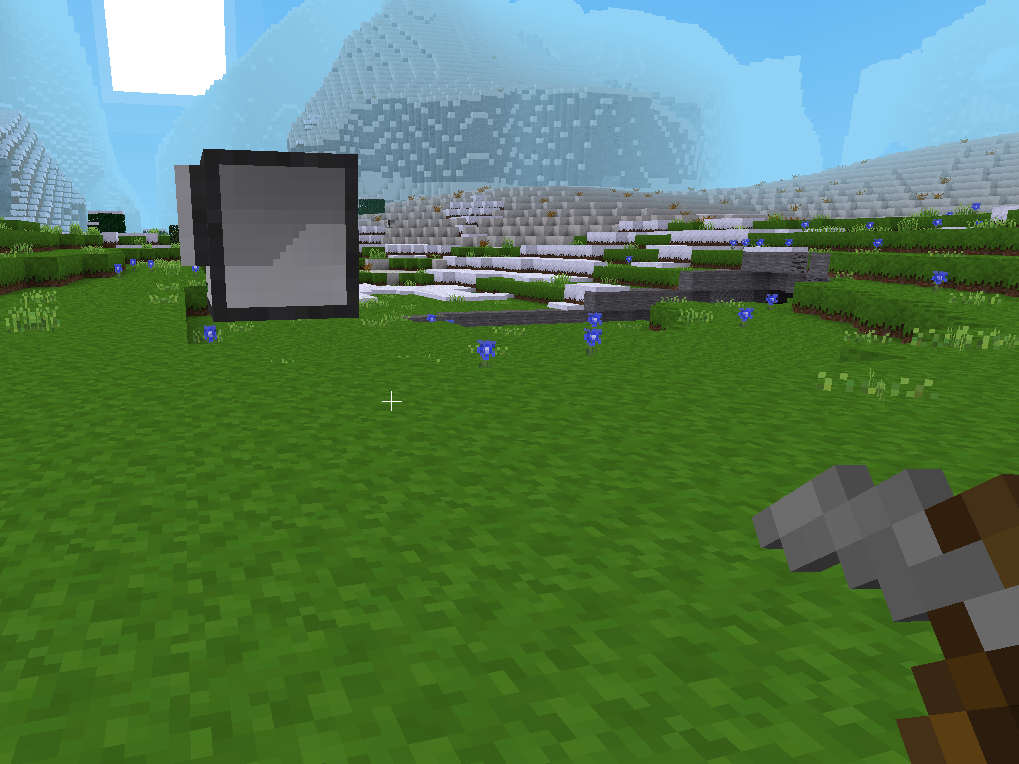
This is called a “turtle” or “bot”, and will do whatever you instruct it to do.
First, let’s give our bot some materials to build with. If you right-click on the bot,
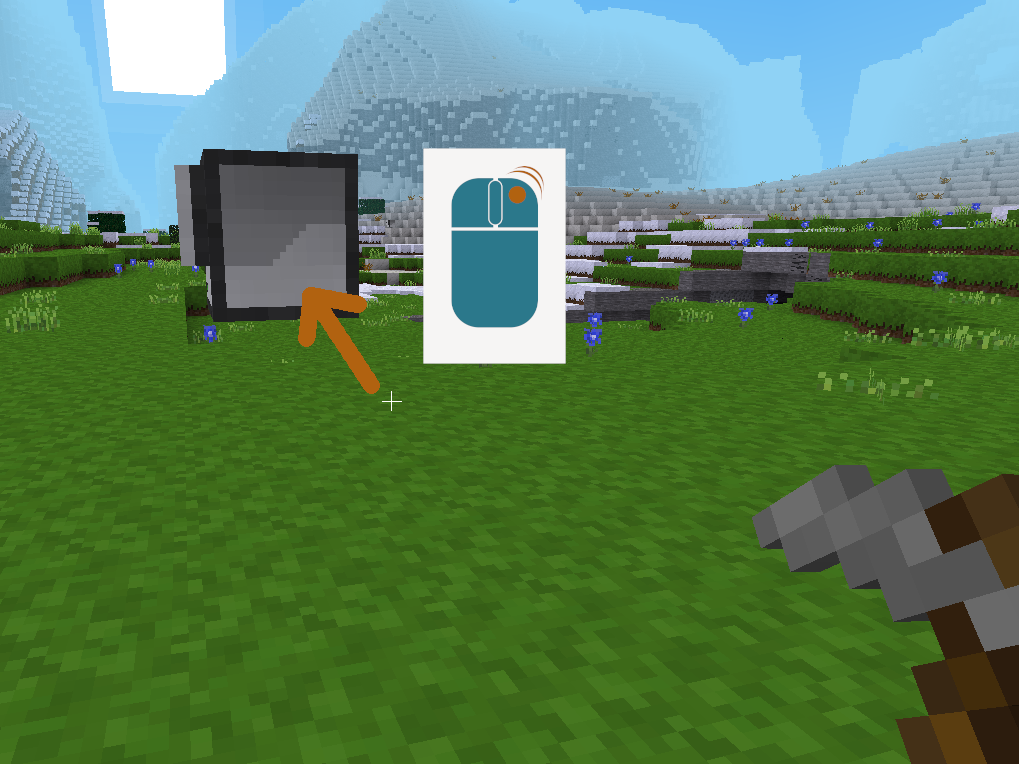
this opens the turtle interface:
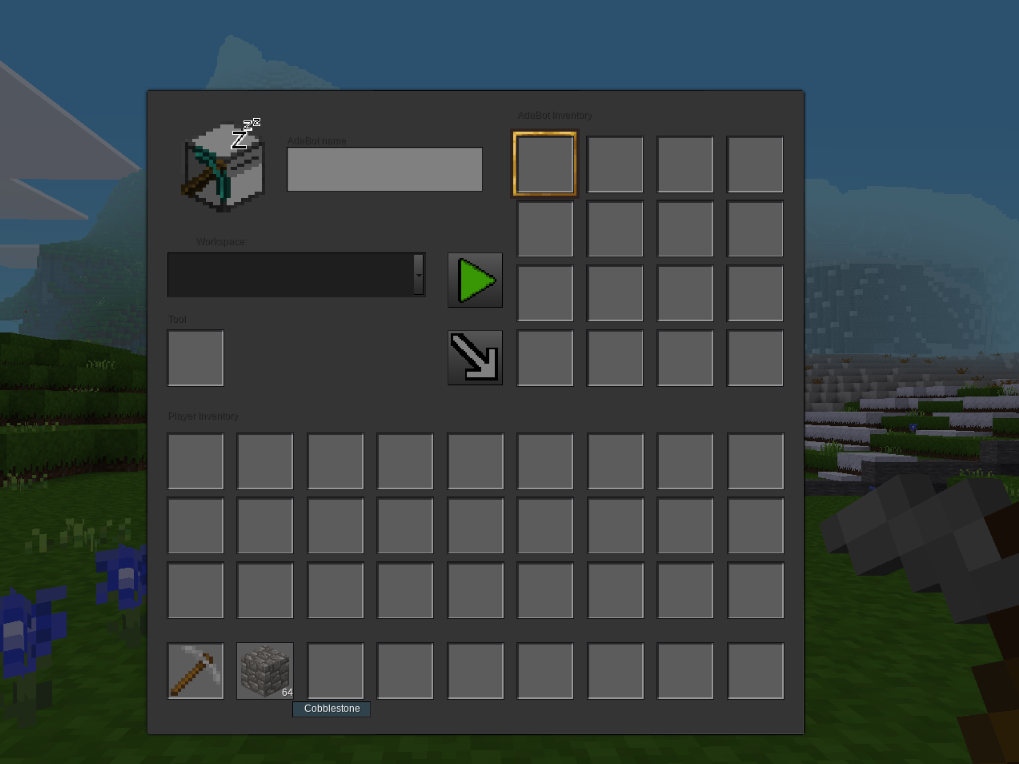
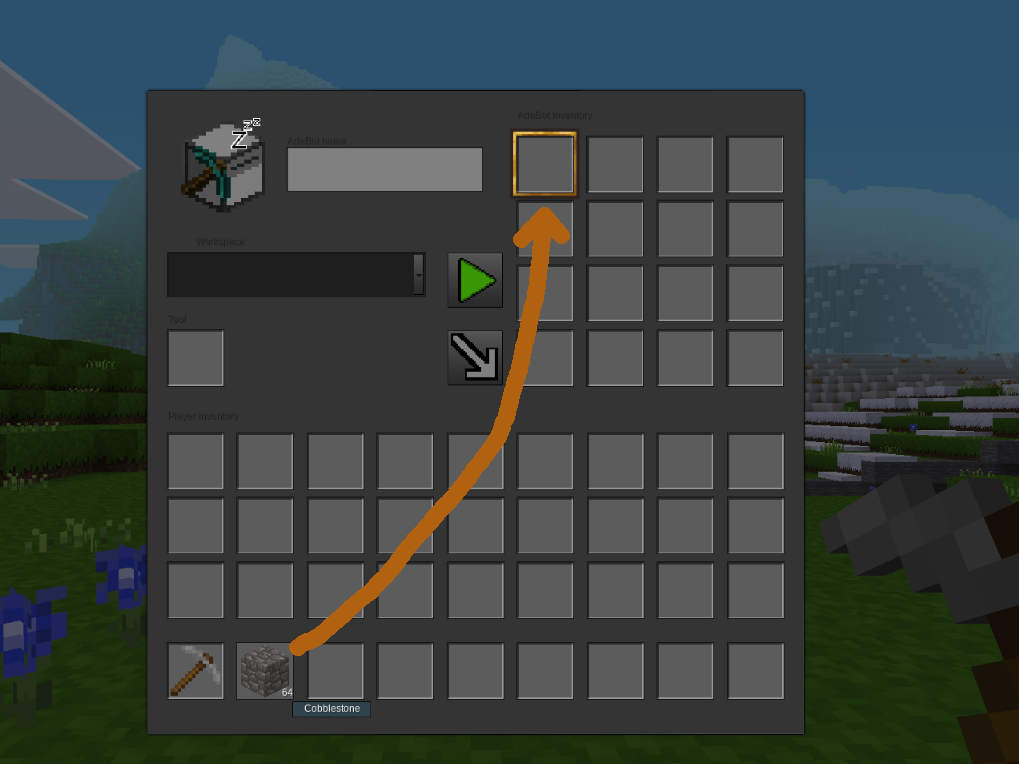
Next, left click on the dark-gray cobblestone material you have:
And then left-click in the first slot in the inventory of the turtle, on the right. The yellow outline on that slot shows that the turtle has selected this slot.
Programming
Giving instructions is called programming (or “coding”), and we do this in a “coder workspace”. Back in the “Workspaces” tab, type in your name and click “Create”:
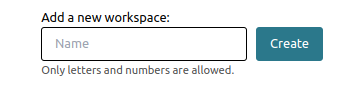
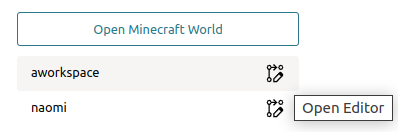
Now you can click the button next to the workspace to open it. If you have more than one student, you should make a separate workspace for each.
If the workspace is missing, try reopening the world.
If you have it, it is a good idea to use a separate screen, or even a whole separate computer / laptop for the coding environment. That way, you can see your bot move while you code.
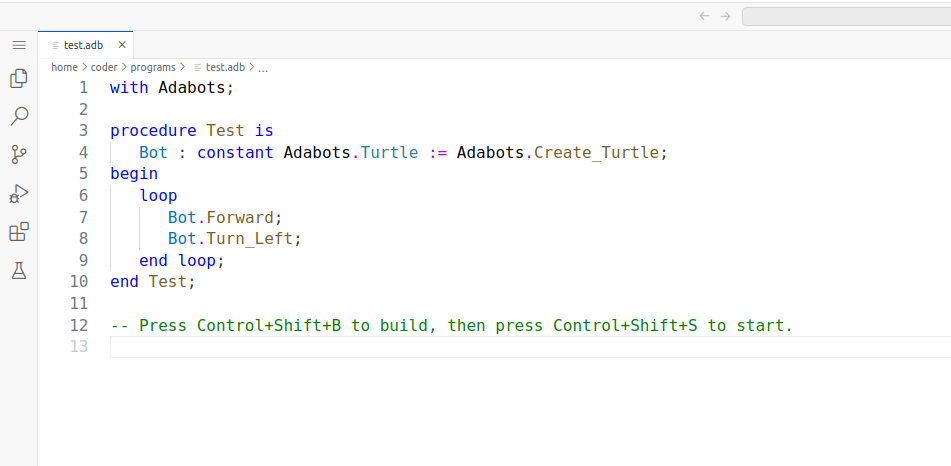
Once open, you will see an example program:
Connecting the two
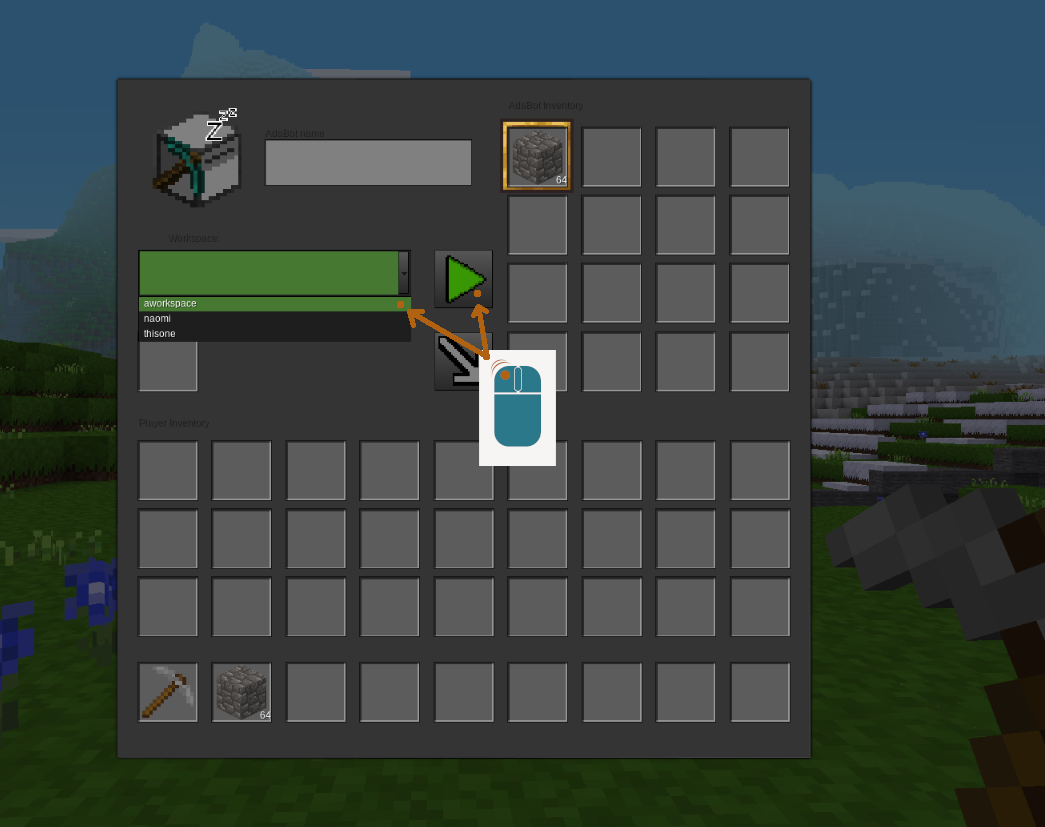
However, before you can run this program, you need to make sure the bot is listening. Go back to the Luanti world and open the turtle interface. Using the dropdown menu, select the workspace name and click the green “play” button:
Building and running
Now, back in the coder workspace, press Control+Shift+S and you will see your bot move around in the Luanti world. If you need to cancel the program, click in the terminal pane below the code and press Control+C to stop it.